How to Play Music While Screen Recording iPhone
This page explains how to play music while screen recording on iPhone—built-in screen recorder captures system audio; import to SONGTAKE—for users who want to capture music during screen record.
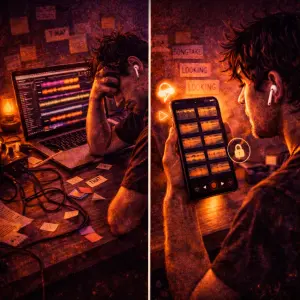
This is YOU?
Trying to record a video with music in the background.
Need to capture both music and your performance.
Want to create content with music playing.
Looking for a way to screen record with music audio.
Pro Tip: TIP: Use your iPhone's built-in screen recorder to capture music while recording. The screen recorder captures system audio, so any music playing through your iPhone will be recorded. Then import the video into SONGTAKE to organize and export the audio.
Frequently Asked Questions
How do I play music while screen recording on iPhone?
Use your iPhone's built-in screen recorder. Go to Settings > Control Center > Screen Recording, then swipe down and tap the record button. Start playing music in any app, and the screen recorder will capture both the video and the music audio. Then import the recording into SONGTAKE to organize it.
Will the music be recorded in the screen recording?
Yes. The screen recorder captures system audio, so any music playing through your iPhone will be recorded. Works with Spotify, Apple Music, YouTube, or any music app.
How do I enable screen recording on iPhone?
Go to Settings > Control Center, then add Screen Recording. Then swipe down from the top-right corner (or bottom on older iPhones) and tap the record button. Make sure "Microphone Audio" is enabled if you want to record your voice too.
Can I record from streaming services?
Yes. The screen recorder captures system audio from any app, including Spotify, Apple Music, YouTube, or any streaming service. Record whatever music is playing through your iPhone.
How do I import screen recordings into SONGTAKE?
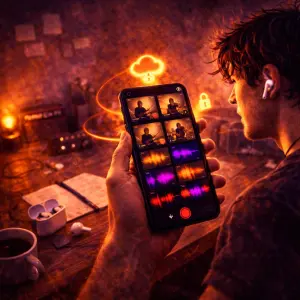
After screen recording, open SONGTAKE and import the video file. SONGTAKE extracts the audio and organizes it with your other recordings. Keep everything in one place.
What makes SONGTAKE different from voice memos?
SONGTAKE records in true stereo with automatic cloud backup, project organization, and multi-track capabilities. Unlike voice memos that create a graveyard of unnamed files, SONGTAKE keeps everything organized, synced across devices, and ready to develop into full productions.
Can I use SONGTAKE with just one phone?
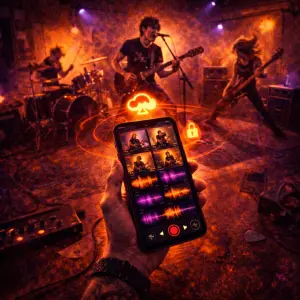
Absolutely! SONGTAKE works perfectly with a single phone for recording arrangements, backing vocals, and layered instruments. While multiple phones provide multi-angle coverage and better isolation, one phone is sufficient to create professional multi-track recordings with video overdubbing.
Can I use SONGTAKE for professional music recording?
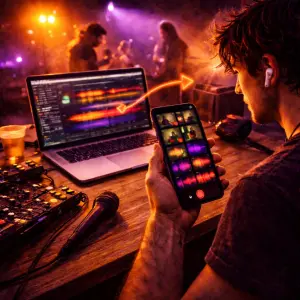
Absolutely! SONGTAKE allows you to effortlessly move from mobile recording to professional desktop production. Begin capturing your song ideas on your iPhone, then open the same project on a Mac with a 64-channel interface for mixing and mastering. It's the perfect tool to transform your inspiration into a polished production.
How does multi-phone recording work?
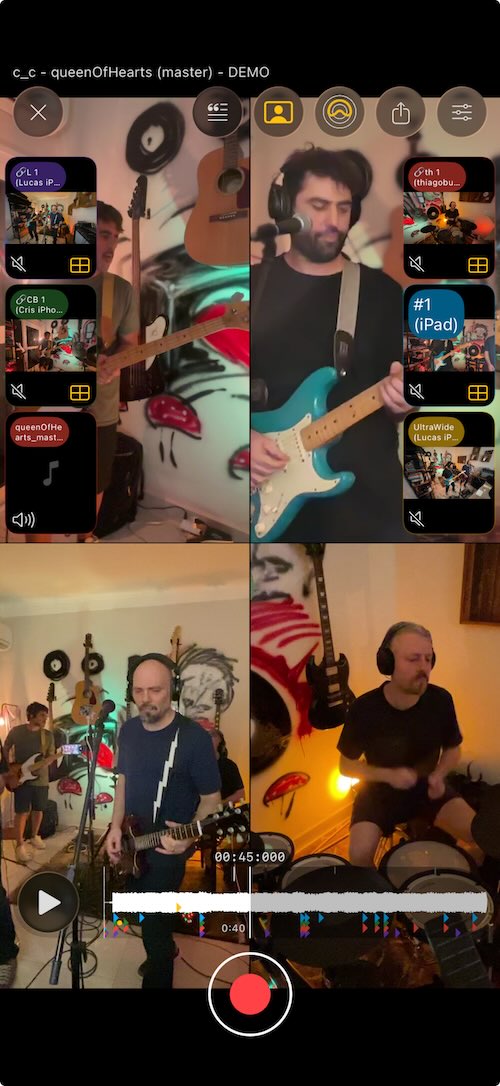
Place phones near each instrument for dedicated microphones. One tap starts all phones simultaneously, and they automatically sync after recording. No manual alignment needed—just position phones, hit record, and get professional multi-track isolation from devices you already own.
Ready to Get Started?
Download SONGTAKE and start recording professional-quality music today. No credit card required.
Built by musicians who were tired of voice-memo graveyards.