How to Record Orchestral Music on iPhone
To record orchestral music on iPhone, use SONGTAKE and build the sound by overdubbing sections: lay strings, then stack woodwinds, brass, and percussion each on its own track. Or place a phone per section for a live ensemble take, and capture a soloist in true stereo.
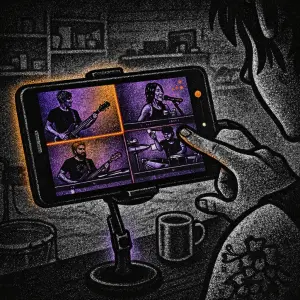
This is YOU?
A live ensemble blurs into one file with no way to balance sections.
A single mic flattens the wide, roomy tone of strings.
You cannot rebalance the brass once everything is baked together.
One gorgeous string line is trapped inside the finished mix.
Pro Tip: TIP: SONGTAKE lets you overdub strings, woodwinds, brass, and percussion each on its own track, or place a phone per section for a live take. Capture a soloist in true stereo and balance every section.
Frequently Asked Questions
How do I record orchestral music on iPhone?
Use SONGTAKE and build the sound by overdubbing sections. Lay strings, then stack woodwinds, brass, and percussion each on its own track. Or place a phone per section for a live ensemble take, and capture a soloist in true stereo.
How do I record a live ensemble and keep sections separate?
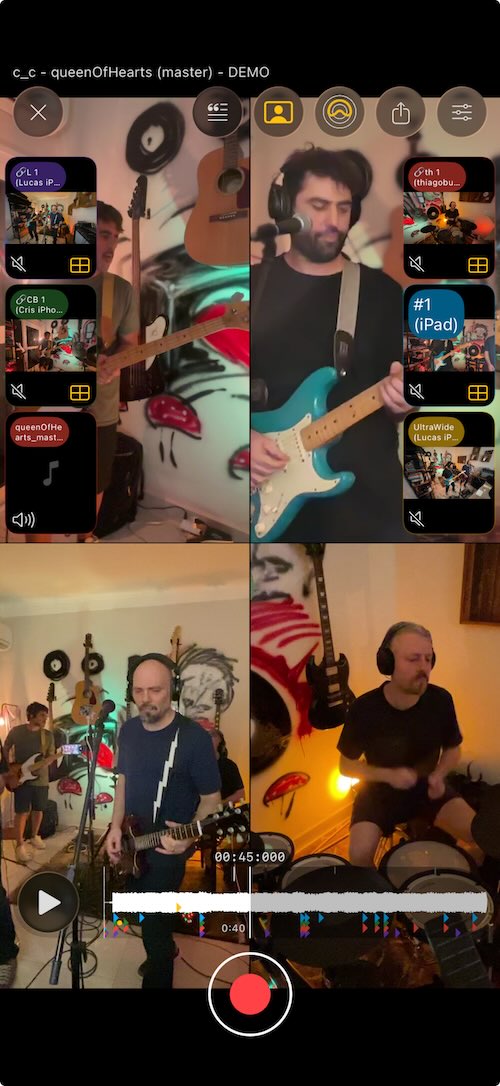
Place a phone at each section, close to the players. One tap starts all phones and they auto-sync afterward, so the strings, brass, woodwinds, and percussion land on separate tracks you can balance.
How do I record a soloist well?
Capture a solo violin, cello, or piano in true stereo from the two built-in iPhone mics. Stereo capture keeps the wide, roomy tone that a single mic flattens.
Can I isolate a string line from a recording?
Yes. Run AI stem splitting to pull a section or line out of any recording. Lift a string line to study it or reuse it in a new piece.
Do I need an audio interface to record orchestral music?
No. SONGTAKE works with the phones you already own and needs no interface. When you want to finish, open the same project on Mac where external mics and interfaces are supported.
What makes SONGTAKE different from voice memos?
SONGTAKE records in true stereo with automatic cloud backup, project organization, and multi-track capabilities. Unlike voice memos that create a graveyard of unnamed files, SONGTAKE keeps everything organized, synced across devices, and ready to develop into full productions.
Can I use SONGTAKE with just one phone?
Absolutely! SONGTAKE works perfectly with a single phone for recording arrangements, backing vocals, and layered instruments. While multiple phones provide multi-angle coverage and better isolation, one phone is sufficient to create professional multi-track recordings with video overdubbing.
Can I use SONGTAKE for professional music recording?
Absolutely! SONGTAKE allows you to effortlessly move from mobile recording to professional desktop production. Begin capturing your song ideas on your iPhone, then open the same project on a Mac with a 64-channel interface for mixing and mastering. It's the perfect tool to transform your inspiration into a polished production.
How does multi-phone recording work?
Place phones near each instrument for dedicated microphones. One tap starts all phones simultaneously, and they automatically sync after recording. No manual alignment needed—just position phones, hit record, and get professional multi-track isolation from devices you already own.
Ready to Get Started?
Download SONGTAKE and start recording professional-quality music today. No credit card required.
Built by musicians who were tired of voice-memo graveyards.