How to Record Trumpet on iPhone
To record trumpet on iPhone, open SONGTAKE and place the phone a couple of feet off the bell, slightly to the side, then record. SONGTAKE captures the bright trumpet tone in true stereo, layers a brass section, and syncs to Mac.
This is YOU?
Pointing the mic right at the bell makes it harsh and brittle.
You want a brass section but you're only one player.
Recording too close gives you a piercing, one-dimensional tone.
You can't send a clean trumpet stem to your bandmates.
Pro Tip: TIP: Trumpet throws a loud, direct blast, so stand your iPhone a couple of feet back and slightly off the bell axis to catch a bright but clean tone without clipping, then overdub lines to build a full brass section.
Frequently Asked Questions
How do I record trumpet on iPhone?
Open SONGTAKE and stand the phone a couple of feet back from the bell, slightly off to one side. Keeping distance and staying off the direct blast avoids clipping. SONGTAKE captures the bright trumpet tone in true stereo, and you can layer harmony parts into a brass section.
How do I stop my trumpet from clipping when I record?
Give the bell room. A couple of feet of distance and a slightly off-axis angle keep even the loudest high notes from overloading the mic. SONGTAKE then holds a punchy, clean trumpet through big dynamic swings.
Why does my trumpet sound harsh and brittle recorded?
Pointing the mic straight into the bell up close captures the most piercing part of the sound. Backing off and angling slightly to the side gives a rounder, more natural tone. SONGTAKE captures that in stereo, and you can soften it further on Mac.
Can I build a brass section with one trumpet?
Yes. Record the lead line, then overdub harmonies on separate tracks while the earlier parts play back. Stacking a few passes turns one trumpet into a full brass section, all synced on your iPhone.
Can I isolate the trumpet from a band recording?
Yes. SONGTAKE's AI stem splitting separates instruments from any recording, so you can lift a clean trumpet out of a combo or remove it to solo over the rhythm section.
What makes SONGTAKE different from voice memos?
SONGTAKE records in true stereo with automatic cloud backup, project organization, and multi-track capabilities. Unlike voice memos that create a graveyard of unnamed files, SONGTAKE keeps everything organized, synced across devices, and ready to develop into full productions.
Can I use SONGTAKE with just one phone?
Absolutely! SONGTAKE works perfectly with a single phone for recording arrangements, backing vocals, and layered instruments. While multiple phones provide multi-angle coverage and better isolation, one phone is sufficient to create professional multi-track recordings with video overdubbing.
Can I use SONGTAKE for professional music recording?
Absolutely! SONGTAKE allows you to effortlessly move from mobile recording to professional desktop production. Begin capturing your song ideas on your iPhone, then open the same project on a Mac with a 64-channel interface for mixing and mastering. It's the perfect tool to transform your inspiration into a polished production.
How does multi-phone recording work?
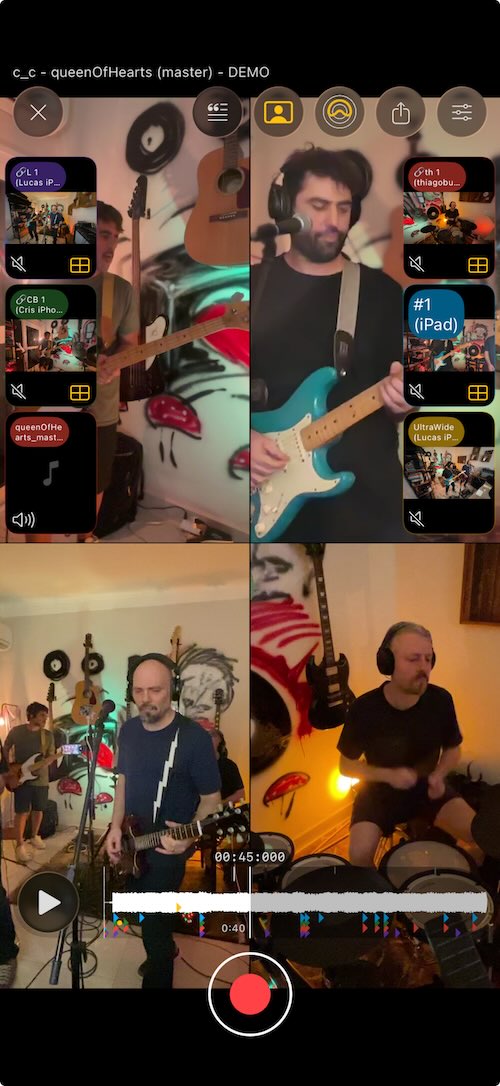
Place phones near each instrument for dedicated microphones. One tap starts all phones simultaneously, and they automatically sync after recording. No manual alignment needed—just position phones, hit record, and get professional multi-track isolation from devices you already own.
Ready to Get Started?
Download SONGTAKE and start recording professional-quality music today. No credit card required.
Built by musicians who were tired of voice-memo graveyards.